 By
By 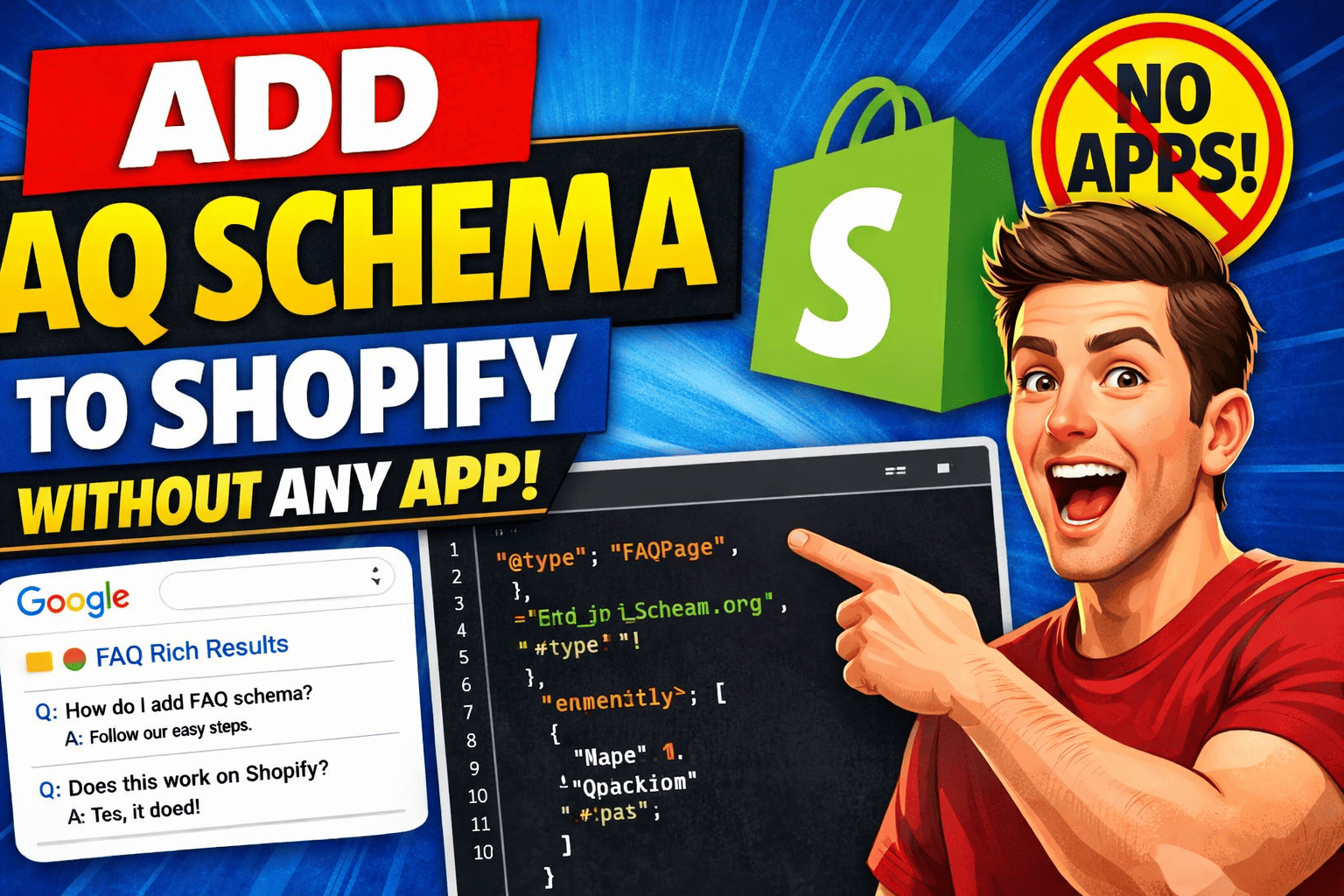
Adding FAQ Schema (FAQPage structured data) to your Shopify store is one of the simplest SEO upgrades you can make. It helps Google understand your page better and may display your questions/answers directly in search results as rich results.
The best part?
👉 You don’t need any app—you can add it manually in a few minutes.
Below is a complete step-by-step guide.
✅ What Is FAQ Schema?
FAQ Schema uses JSON-LD structured data to tell Google that a section of your page contains questions with their corresponding answers.
This makes your content eligible for rich FAQ snippets like:
✅ Before You Start: Two Ways to Add FAQ Schema
You have two possible workflows:
- Add FAQ schema globally (same FAQ appears on every product/page)
- Add dynamic FAQ schema per page or per product (best for SEO)
In this guide, we’ll use method #2, the SEO-friendly version.
🔧 Method: Add Custom FAQ Schema to Any Page/Product Without an App
Step 1: Open Your Shopify Theme Code
- Go to Online Store → Themes
- Click Actions → Edit code
Step 2: Create a New Section for FAQs (Recommended)
This keeps things clean and reusable.
- Under Sections, click Add new section
- Name it:
faq-schema.liquid
Paste this code:
{% schema %}
{
  "name": "FAQ Schema",
  "settings": [
    {
      "type": "textarea",
      "id": "faq_json",
      "label": "FAQ JSON-LD Schema",
      "info": "Paste the generated FAQ schema here"
    }
  ]
}
{% endschema %}

{% if section.settings.faq_json != blank %}
  <script type="application/ld+json">
    {{ section.settings.faq_json }}
  </script>
{% endif %}
👉 This creates a reusable block where you can paste your JSON-LD for each page.
Step 3: Generate Your FAQ Schema JSON-LD
Use this template and customize:
{
  "@context": "https://schema.org",
  "@type": "FAQPage",
  "mainEntity": [
    {
      "@type": "Question",
      "name": "Your first question?",
      "acceptedAnswer": {
        "@type": "Answer",
        "text": "Your answer goes here."
      }
    },
    {
      "@type": "Question",
      "name": "Your second question?",
      "acceptedAnswer": {
        "@type": "Answer",
        "text": "Your answer goes here."
      }
    }
  ]
}
You can add as many Q/A pairs as you want by adding more objects inside mainEntity.
Step 4: Add the FAQ Section to Any Page/Product
For Product Pages:
- Open Customize theme
- Navigate to a product template
- Click Add section
- Choose FAQ Schema
- Paste the JSON-LD you generated
For Regular Pages:
- Open the page template in the Theme Editor
- Add the FAQ Schema section
- Paste your FAQ JSON-LD
Step 5: (Optional) Display the FAQ on the Page
JSON-LD works fine even if the FAQ is not visually shown.
But if you want a visible FAQ block:
Create another section called faq-visible.liquid with:
<div class="faq-section">
  {% for block in section.blocks %}
    <div class="faq-item">
      <strong>{{ block.settings.question }}</strong>
      <p>{{ block.settings.answer }}</p>
    </div>
  {% endfor %}
</div>

{% schema %}
{
  "name": "Visible FAQ Content",
  "blocks": [
    {
      "type": "faq",
      "name": "FAQ item",
      "settings": [
        { "type": "text", "id": "question", "label": "Question" },
        { "type": "textarea", "id": "answer", "label": "Answer" }
      ]
    }
  ],
  "presets": [{"name": "FAQ"}]
}
{% endschema %}
The visible FAQ does not automatically generate schema—that’s why we built the schema section separately.
✅ How to Validate Your FAQ Schema
After publishing, go to:
Google’s Rich Results Test
https://search.google.com/test/rich-results
Enter your URL → You should see:
- ✓ Valid FAQPage structured data detected
⚡ Tips for Better SEO with FAQ Schema
- Add 3–8 questions—Google ignores very long lists.
- Keep answers short and factual.
- Avoid sales language like “Buy now!” in your answers.
- Do not duplicate exactly the same FAQ across many pages.
- Add product-specific questions on product pages.
✨ Final Thoughts
Adding FAQ Schema manually to your Shopify store is extremely easy and gives your pages an SEO boost—without installing any app.
By using a dedicated schema section, you keep full control and can add custom FAQs to each page.
Related article : How to Rank Your Website on ChatGPT Search: The Ultimate 2026 Guide
Need to talk to an SEO expert ? Book a call now
🚀 Marouane RHAFLI just dropped a free SEO course on YouTube! Master SEO step‑by‑step — start watching here 👉 Free SEO Course